Localito Buddy Support en

Language : English / Japanese

Getting started
How to Use Localito Buddy

 Launch App

macOS: Double-click Localito Buddy in your Applications folder.
Windows: Launch from the Start menu.

 Note: Initial startup may take some time.

 Accessibility
On macOS, you will be prompted to grant certain permissions. Localito Buddy requires the following:

Local Network Access
Required for: Communicating with the LM Studio server.
Action: Click Allow when prompted.

Microphone Access
Required for: Voice recognition. This allows you to use your voice to enter prompts.
Action: Grant access to enable voice input features.

Keychain Access
Required for: Securely storing credentials when using LM Studio API Authentication.
Action: Enter your administrator password and click Always Allow.

Speech Recognition Permission
This permission is required to use speech recognition. The macOS version uses the Apple Speech framework for dictation.
Dictation is only available when on-device speech recognition is supported. 

UI Overview
 Main Screen

1, Chat History Toggle
2, Selected Model Display
3, New Chat Button
4, Settings Menu Button
5, Add Attachment Button
6, Prompt Input Area
7, Voice Input Button
8, Send Message Button

 CHAT HISTORY MANAGEMENT
1, New Chat Button
2, Rename Chat Button
 - A dialog will appear to rename the chat.
3, Delete Chat Button
 - Deletes the chat, RAG data, and related files.

 Settings
1, LM Studio Server IP Address
 Enter the IP address of the LM Studio host
2, LM Studio Port Number
3, API Key Management
4, Select LLM
5, Max Context Length
6, Meta Prompt Field
7, Vision LLM Preset Prompt 
        

8, MCP Server Management
9, Interface Language 
A, Voice Recognition Language
B, Rebuild RAG Index
C, Test Connection
D, Save Settings


 Connect to LM Studio

In the Settings screen, configure the connection to LM Studio. Enter the Server Address and Port Numbercurrently set in LM Studio.

・If on the same machine: You can use localhost as the IP address.
Port Number: The default is 1234. If this port is being used by another application, please specify a different number.

LM Studio server setting
Once entered, click the “Test Connection” button at the bottom of the settings screen. If everything is correct, a message will pop up saying “Connection Successful”.
If the test fails, please double-check the IP address and Port Number in LM Studio. Once successful, don’t forget to click the “Save” button!

 Model Settings
Once the connection is established, you can select an LLM from your LM Studio downloads. Click the Model field to view and select from the list of available models. After selection, the model name will be displayed at the top of the main screen.

Model Icons:
  • 🖼️ Picture Icon: Vision support (supports image input).
  • 🛠️ Wrench Icon: Tool Use support.
Always run “Test Connection” before selecting a model after launching the app. If you send a message without selecting a model, the app will attempt to use the last used model.

 Sending Messages
Enter a message in the text input field at the bottom of the main screen and click the Send button.

Inference: Once sent, your message will appear on the main screen with “Inferencing…” displayed below it.

Streaming Responses: Responses from LM Studio will stream in real-time and will be automatically formatted once

Stopping a Response: In the rare case that a response becomes stuck or if you wish to interrupt it, click the Stop button to halt the generation.complete.

Voice Input
Localito Buddy features a built-in voice recognition engine.

How to Use: Click the Microphone icon to the right of the message input field to start recognition. Click Stop to insert the transcribed text into the input area.

Troubleshooting: If your voice is not recognized, please check your OS microphone settings and input levels.

Language Settings: You can switch the recognition language in the Settings screen. Please note that switching the voice model takes about 1–2 seconds.

Privacy: Voice data is discarded immediately after being converted to text.

Chat History
Click the icon in the top-left corner of the main screen to open the Chat History area.

Auto-Titling: The app automatically generates a chat title based on your first question and the AI’s response.

Untitled Chats: If using a heavy LLM that causes a timeout, the title will default to “Untitled_ [Date]”.

Managing History
Rename Chat (Button ②): Click this to open a dialog and change the chat title.
Delete Chat (Trash Icon ③): Click this to remove a chat. A confirmation dialog will appear.

Note: Deleting a chat will permanently remove all associated chat content, RAG data, and attachments. 

Advanced Features

 RAG from Attachments
By adding your own files, you can chat with the AI based on specific information beyond its pre-trained knowledge.
To use attachments, click the Attachment icon to the left of the message input area to open the file selection dialog.

    Supported File Formats

 Documents: PDF, Text (.txt), Rich Text (.rtf), Word (.docx), Excel (.xlsx), CSV, HTML, Markdown (.md), EPUB, JSON
 Images: JPEG, PNG, TIFF

    Building the RAG Database
Once a file is selected, the app begins importing and building the RAG database. After the process is complete, the name of the attached file will be displayed on the chat screen.

Attached files are copied internally and linked to each specific chat.

Viewing Files: When you select a past chat from the history, the attached files will appear at the top of the chat area. Clicking the file name will open it in its default application for viewing.

Deleting Attachments: You can remove an attachment by clicking the Delete icon to the right of the file name. A confirmation dialog will appear.

Note: This only deletes the copy stored within the app; your original file remains unchanged.

Note: Deleting an attachment from the display does not affect the existing RAG database.

 About Vision LLMs
Vision LLMs are models capable of analyzing and verbalizing images, diagrams, and charts. By using these models, you can incorporate non-textual information into your RAG database. They can also act as an OCR to recognize unencoded text or handwritten characters.

How to Use: In the Settings screen, select a model from the “Select LLM” dropdown list that features the Picture icon (🖼️).

 Note: If a model with the icon does not function as expected, please contact us.

Vision Analysis Modes (Presets)
To get the best results, select a preset from the “Vision Analysis Mode” list in the Settings. Choose the one that best matches the information you need:

・General: A brief description of everything.
・Flyers & Ads: Extract products and prices.
・Documents: Structured text extraction.
・Blueprints & Layouts
・Chart Overview: General summary of diagrams.
Data Extraction: Numerical values and comparisons from charts.
Handwritten Notes
Receipts
Custom Prompt: Use your own specific instructions.

    Correction Dictionary
When using Vision LLM for OCR, recognition errors may occur. Localito Buddy is designed with strict constraints to minimize hallucinations, which sometimes makes the AI “stubborn” about correcting its own typos.

The Correction Dictionary feature solves this. You can force a correction by sending a message in the following formats:
・Old Word => New Word
・Old Word -> New Word
・Correct: Old Word New Word
・Actually: Old Word New Word

Once sent, the app will maintain the corrected term in future interactions.

[!TIP]
Depending on the LLM, it might respond with a parting remark like, “I’ve changed it because you insisted, even though it was originally XYZ.” Please take these comments with a grain of salt!

 Multimodal RAG
By combining PDFs with a Vision LLM, the app automatically constructs a RAG database that integrates both text and analysis of images or charts found within the file.

This multimodal approach ensures that the AI captures the full context of your attachments, allowing you to extract more accurate and comprehensive information that traditional text-only RAG might miss.

 LM Studio Authentication
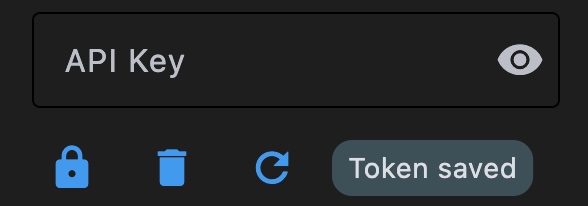
You can enable access control by registering an API key issued by LM Studio. This can be configured in the API Keysection of the Settings screen.

・API Key Input Field: Enter your API key here.
・Save Icon (🔐): Saves the entered key.
・Trash Icon (🗑️): Deletes the registered key.
・Verify/Reload Icon (🔄): Checks the current storage status of the key.
Token Status Display:
    “Token empty”: No key is currently registered.
    “Token saved”: A key has been securely stored.

  Security and Storage
Once saved, the API key will no longer be visible in the input field for security reasons.
The key is encrypted and stored within your operating system’s secure credential management system (Keychain for macOS and Credential Manager for Windows). The key is not stored within the application itself.

 Using MCP Servers

You can call and use MCP (Model Context Protocol) servers registered in LM Studio directly from Localito Buddy.
[!WARNING]
Use with caution: This feature may exceed the scope of typical local LLM usage. Please ensure you understand the security implications of the MCP servers you connect to.
 MCP Usage Requirements
To use this feature, the following conditions must be met:

LM Studio Authentication must be configured and active in both LM Studio and Localito Buddy.
・The MCP server must be functional within the LM Studio chat interface.
・The following settings must be ON in LM Studio:
 Require Authentication
 Allow-per-request MCPs
 Allow calling servers from mcp.json
 Enable CORS

LM Studio server setting

 Localito Buddy Configuration
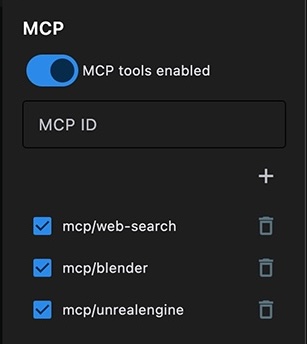
Use the MCP section in the Settings screen:
1, Registering a Server: In the MCP ID field, enter the exact name configured in LM Studio (e.g., mcp/sandbox). Click the plus (+) button directly below to register it.
2, Activating MCP: To use a server, check the box next to its name and switch the “mcp tools enabled” toggle to ON.
3, Removing a Server: Click the Trash icon to unregister an MCP server.

    Tips for Effective Use
・Model Compatibility: Success depends on the specific LLM being used. If the model doesn’t trigger the tool automatically, you may need to explicitly instruct it in your prompt (e.g., “Use the [MCP Name] tool to…”).
Preventing Errors: To avoid unexpected behavior, turn the toggle OFF when not in use, or uncheck MCP servers that are irrelevant to your current chat topic.

 Licensing
You can explore all features of Localito Buddy with our free trial.
Trial Limitation: The chat history is limited to 2 sessions.
Unlocking Full Version: You can remove this limit by purchasing a license within the app.

 Support & Contact
We offer customer support via email. Please feel free to reach out to us with any questions or feedback.
 support_mdx@m-designx.com

Localito Buddy product site : https://m-designx.com/localito-buddy-en/
Localito Buddy Privacy Policy : https://m-designx.com/privacy-policy-for-localito-buddy/